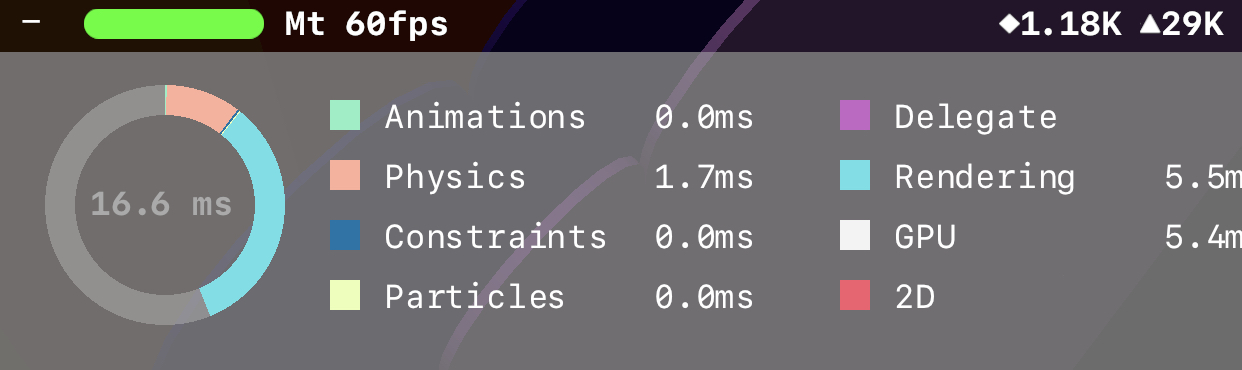
SceneKit is powerful and it is not that hard to create 3D games with it. Unless being careful it is also quite easy to have performance problems, especially for the older generation devices.
SceneKit consumes more resources with increasing node (◆) & polygon (▲) numbers, or with more detail on lighting, depth of field effects and transparency and blur effects.
Here are a couple things to check to improve SceneKit performance:
- Enable SCNView.showStatistics setting for the debug build and check the number of nodes and triangles. Remember, lowering these numbers will help you.
- More details to your geometries adds more polygons to the scene. Decreasing details to a level which is acceptable visually too, will improve the performance.
- Check the detail of your 3D models
- You can also check SCNBox.chamferRadius or UIBeizerPath.flatness (for SCNShape.shapeWithPath)
- Consider using less detail for far objects, as it won’t really be visible to the camera. Have multiple versions of your geometry for different distance and provide them to SceneKit with SCNGeometry.levelsOfDetail.
- Consider disabling SCNCamera depthOfField.
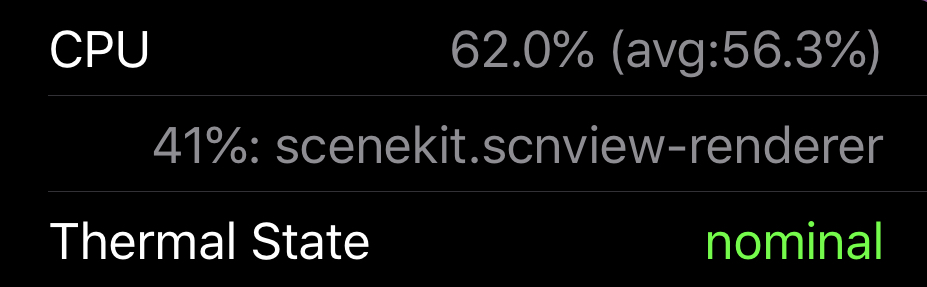
You may also consider to implement some debug overlay view (or log file) to display the CPU usage, top resource heavy thread or CPU thermal state, to be able to observe performance on the user devices during beta testing.
As the last resort, you may even consider decreasing the frame rate (if it is visually acceptable) for the low performance devices (SCNView.preferredFramesPerSecond). You can periodically monitor the CPU overhead and take this action for troubled devices.
Enjoy your game
 sum up